




Web pages
Clip the full article — clean text, images, and source URL — not just a link that rots.
One click from your browser →
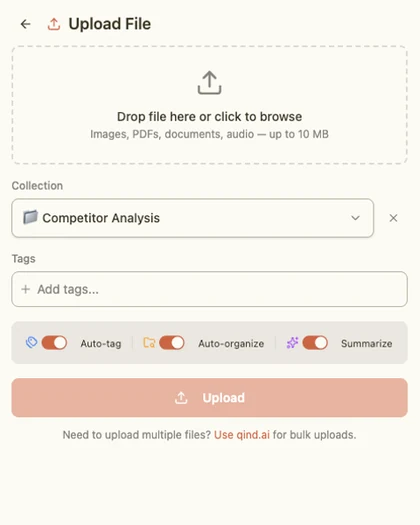
Clip webpages, PDFs, screenshots, highlights, and notes into Qind. Everything you save becomes searchable knowledge you can chat with later.
Chrome, Firefox, Safari & Edge
Capture anything
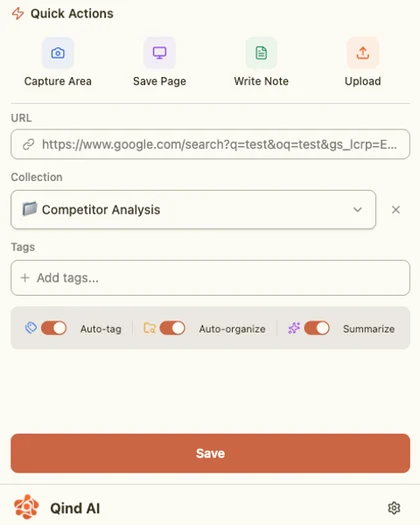
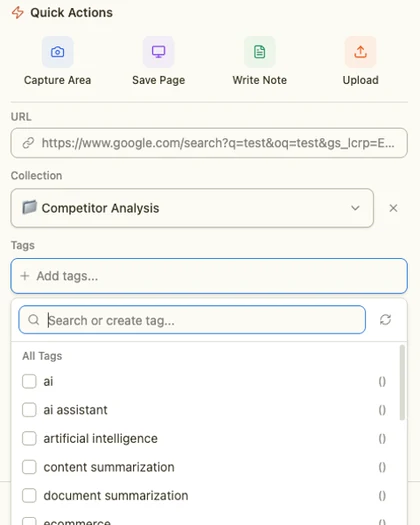
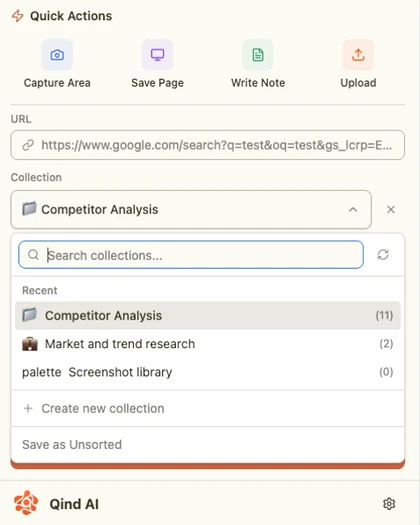
Save the thing in front of you without breaking your flow. Qind captures the content, keeps the source, and prepares it for recall.
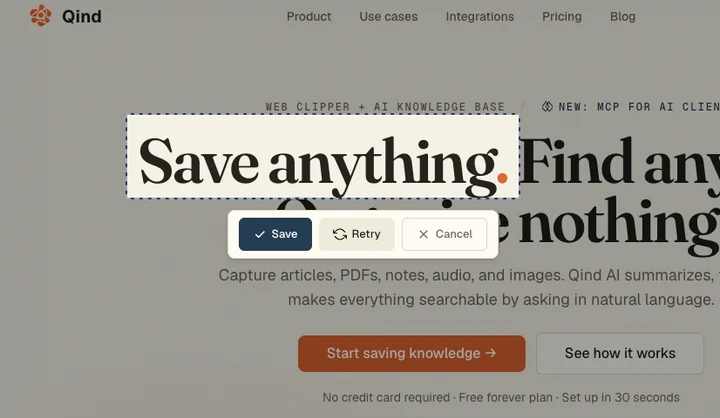
Capture area
Draw around a passage, table, or visual detail. Qind saves the selection with source context, so the useful part is searchable later.
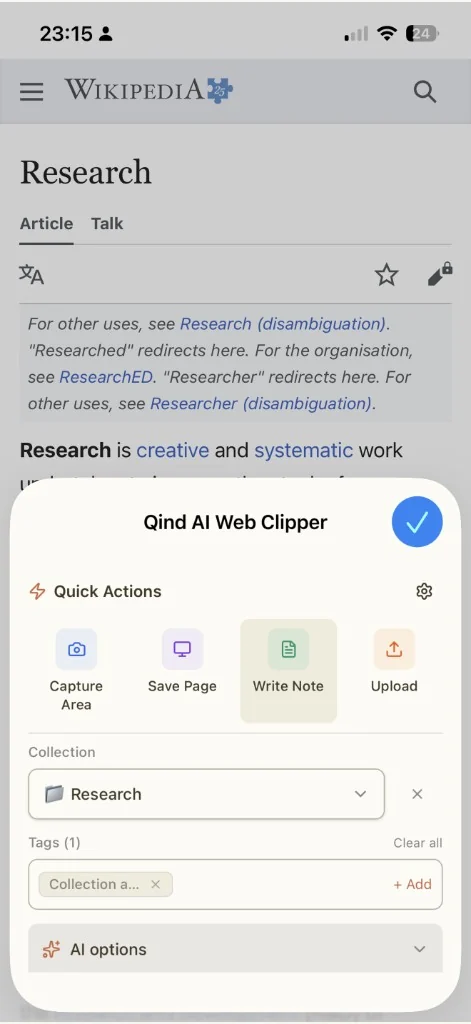
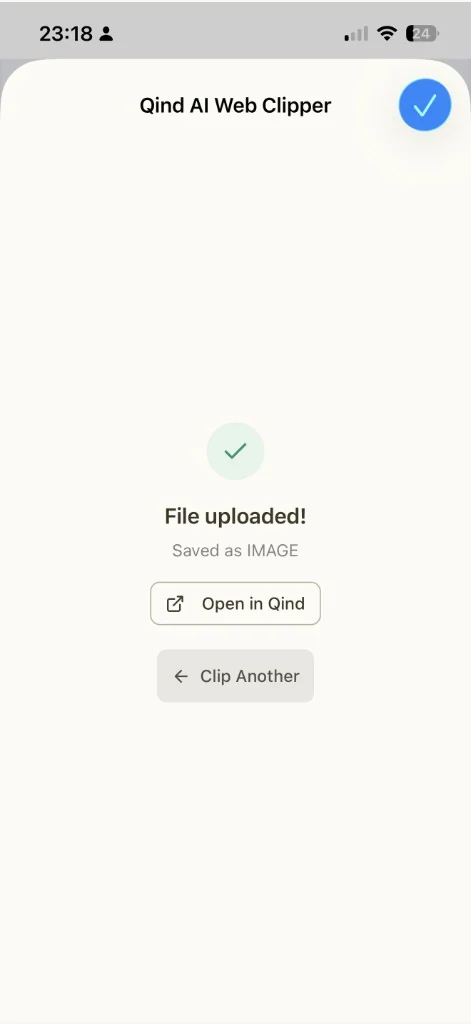
Mobile clipper
On mobile, the clipper stays large enough to tap, read, and confirm without leaving the browser.

Clip the full article — clean text, images, and source URL — not just a link that rots.
Papers, decks, and reports become readable, searchable knowledge instead of forgotten downloads.
Capture any region. Qind reads the text inside, so you can find shots by what they say.
Select a passage and save just that. The quote keeps its source and surrounding context.
Jot a thought without leaving the page. It lands in the same library as everything else.
Save a YouTube video with its transcript, so you can search what was said, not just the title.
How it works
Four steps — and only the first one is your job.
One click in your browser captures the whole page, PDF, or highlight — no copy-paste, no new tab.
Qind reads each clip, writes a summary, and pulls out what it's actually about.
Every save is tagged, filed, and linked to related clips automatically. You never touch a folder.
Search by meaning or just ask. Get answers built from your own clips, with the source attached.
Why not just bookmark it
The useful part is rarely the URL. It is the argument, the screenshot, the highlighted sentence, or the thing you wanted future-you to remember.
the average bookmark is opened zero more times
Find it when it matters
Retrieval is the point of saving. Ask the library you built and get back to the source, not a vague memory of where it might be.
What was that argument about memory being the next moat?
none of these contain that exact phrase — Qind matched the idea
Who it's for
Save papers, methods, interviews, and background reading. Ask across them later without rebuilding the trail.
Clip competitor pages, customer quotes, analyst reports, and positioning notes into one searchable workspace.
Capture pricing pages, investor essays, GTM playbooks, and customer language before tabs disappear.
Save lecture PDFs, web sources, highlights, and quick notes. When the exam or paper arrives, ask Qind where the idea came from.
Clip docs, Stack Overflow threads, GitHub issues, snippets, and architecture posts. Search by the problem you remember.
Questions
Qind supports Chrome, Firefox, Safari, and Edge on desktop, plus Safari on iOS. Chromium browsers like Brave and Arc work via the Chrome extension.
Yes. You can install the clipper and start saving on the free plan. Paid plans are for people who want more saved items, deeper AI features, and higher usage limits.
Qind saves the readable content, title, source URL, selected highlights, notes you add, and enough context to make the item searchable later. For PDFs, screenshots, and transcripts, Qind extracts text so those saves can be found by meaning too.
No. Qind summarizes, tags, files, and links related clips automatically. You can edit details later if you want, but the default workflow is save now and let Qind handle the structure.
Qind searches by meaning, not only by exact keywords. Describe the idea you remember, and it looks for clips with similar concepts, arguments, and context even when the same words never appear.
Yes. Your clips are your knowledge base. Saved content is encrypted in transit and at rest, and it is not used to train AI models. You can export or delete your data when you need to.
Add the clipper and start turning everything you read into a memory you can actually use.
free to start · chrome, firefox, safari & edge · your clips stay yours