
Search & discovery
Search items in natural language search_items
Filter by type or folder filter
Retrieve an item's full content get_item
Connections / MCP
Qind speaks the open Model Context Protocol, so your AI assistant can search your library, create notes and bookmarks, and run AI operations without leaving the tool you already use.
works with Claude · GitHub Copilot · ChatGPT · any MCP client

Your Qind
MCP server
Your AI
What it can do
read & write · scoped to your library · revoke access anytime
Search
Authenticate once, then search, list, and open your saved collections by meaning from the MCP client you already use.
Claude Code — qind
> /mcp
└ Authentication successful. Connected to Qind.
> get my collections from Qind
● I'll fetch your Qind collections now.
Called Qind · list_collections
● Here are your collections:
| Name | Items | Last updated |
|---|---|---|
| Product research | 23 | today |
| Competitor analysis | 9 | yesterday |
| Pricing & packaging | 7 | 2 days ago |
| Landing page refs | 10 | last week |
| GitHub platform | 10 | last week |
| System design | 3 | last month |
6 collections total — most active is "Product research" (23 items).
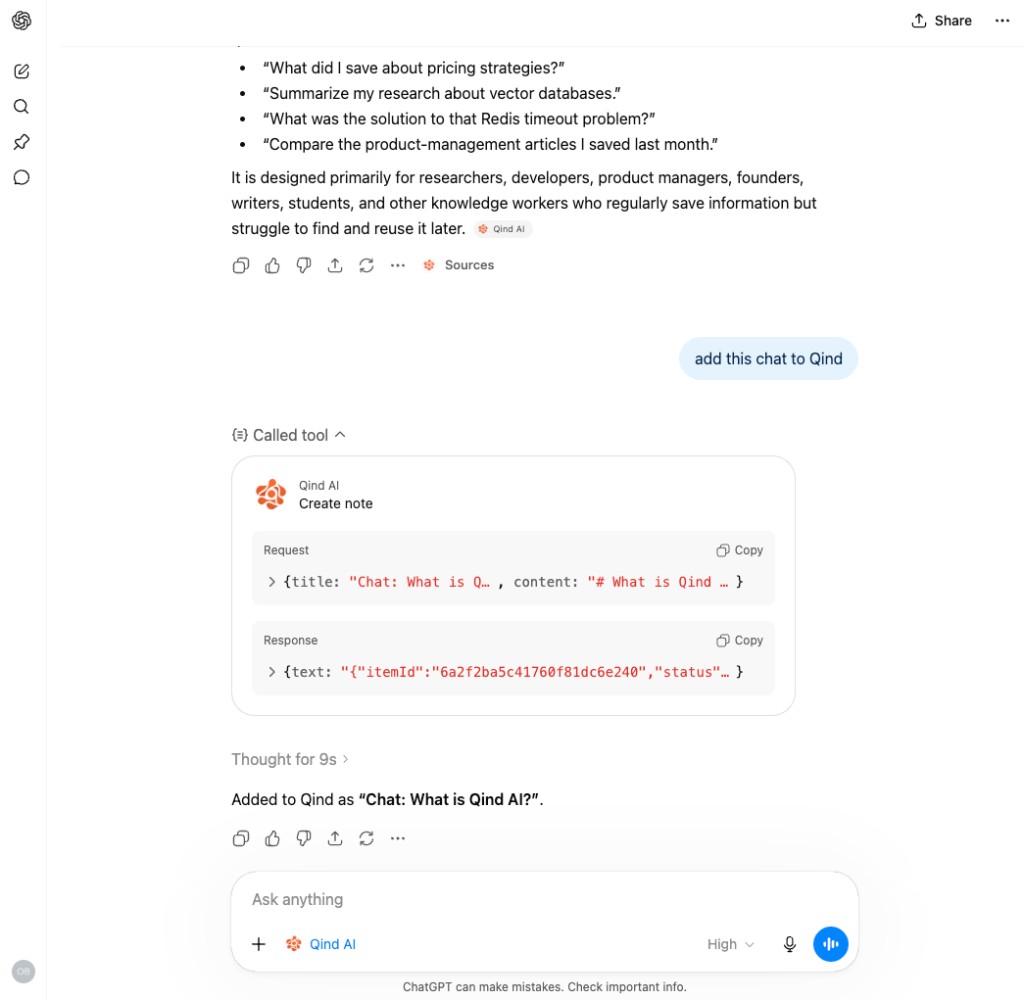
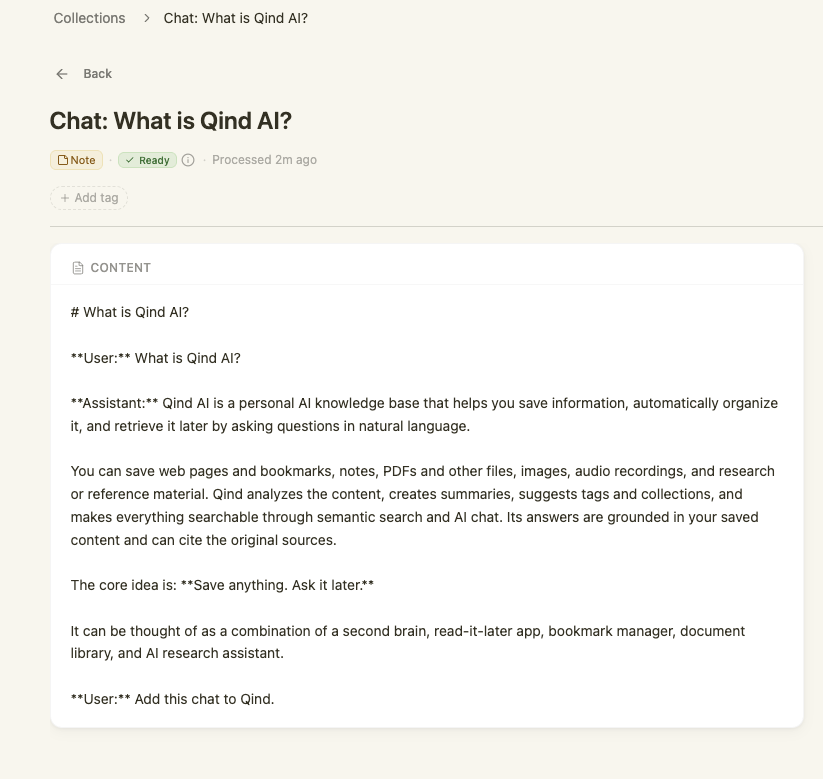
Capture · real round-trip
Not a mockup — here's the actual round-trip. Ask your AI to save the conversation, and Qind files it as a searchable note in your library.
Access & safety
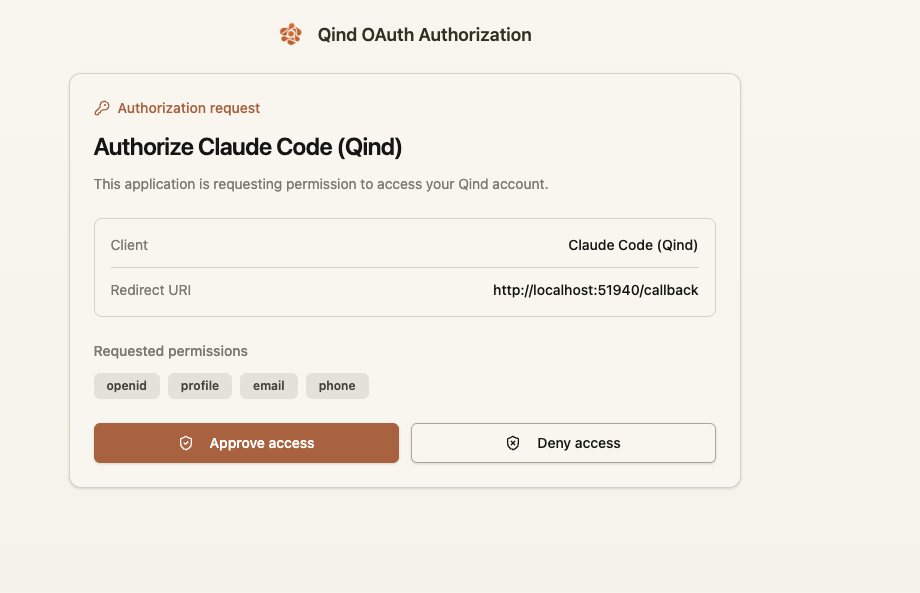
approve once via OAuth — or paste a scoped personal token
Let your AI search and retrieve saved Qind items without changing your library.
Allow your AI to create notes, save bookmarks, move items, and organize your library.
Full audit log Every MCP tool call is recorded in your account.
Instant revoke Disconnect a client the moment you no longer need it.
Token expiry Scoped tokens can expire automatically.
No silent access Clients ask before Qind is connected.
Get started
Installation
claude mcp add --transport http qind https://mcp.qind.ai/mcp/mcp inside Claude Code.claude mcp add qind -- npx -y mcp-remote https://mcp.qind.ai/mcp/mcp inside Claude Code.qind to mcpServers.{
"mcpServers": {
"qind": {
"url": "https://mcp.qind.ai/mcp"
}
}
}qind to mcpServers.{
"mcpServers": {
"qind": {
"command": "npx",
"args": ["-y", "mcp-remote", "https://mcp.qind.ai/mcp"]
}
}
}⌘ + Shift + J.{
"mcpServers": {
"qind": {
"url": "https://mcp.qind.ai/mcp"
}
}
}⌘ + Shift + J.{
"mcpServers": {
"qind": {
"command": "npx",
"args": ["-y", "mcp-remote", "https://mcp.qind.ai/mcp"]
}
}
}⌘ + P.https://mcp.qind.ai/mcp.{
"mcpServers": {
"qind": {
"command": "npx",
"args": ["-y", "mcp-remote", "https://mcp.qind.ai/mcp"]
}
}
}https://mcp.qind.ai/mcp.codex mcp add qind -- npx -y mcp-remote https://mcp.qind.ai/mcp~/.gemini/settings.json.{
"mcpServers": {
"qind": {
"url": "https://mcp.qind.ai/mcp"
}
}
}/mcp auth qind to open browser OAuth.~/.gemini/settings.json.{
"mcpServers": {
"qind": {
"command": "npx",
"args": ["-y", "mcp-remote", "https://mcp.qind.ai/mcp"]
}
}
}/mcp auth qind to open browser OAuth.{
"mcpServers": {
"qind": {
"url": "https://mcp.qind.ai/mcp"
}
}
}{
"mcpServers": {
"qind": {
"command": "npx",
"args": ["-y", "mcp-remote", "https://mcp.qind.ai/mcp"]
}
}
}qind to mcpServers.{
"mcpServers": {
"qind": {
"url": "https://mcp.qind.ai/mcp"
}
}
}qind to mcpServers.{
"mcpServers": {
"qind": {
"command": "npx",
"args": ["-y", "mcp-remote", "https://mcp.qind.ai/mcp"]
}
}
}settings.json with ⌘ + ,.context_servers.{
"context_servers": {
"qind": {
"url": "https://mcp.qind.ai/mcp"
}
}
}settings.json with ⌘ + ,.context_servers.{
"context_servers": {
"qind": {
"command": "npx",
"args": ["-y", "mcp-remote", "https://mcp.qind.ai/mcp"]
}
}
} Cloud connects to Qind's hosted server at https://mcp.qind.ai/mcp.
Stdio runs a local bridge with mcp-remote.
Also works with any MCP-compatible client
Other connections
Use Qind from Claude, ChatGPT, Cursor, and any MCP client.
Capture pages, PDFs, highlights, and screenshots from the web.
Save and search from your terminal workflows.
Save visual context and make it searchable later.
Bring documents into the same searchable library.
Qind MCP
Connect Qind once. Then search, capture, and organize from the AI client you already keep open.