
01
Something worth keeping? Share it to Qind.
In Safari, or any app with a Share button, tap Share and pick Qind. Choose a collection if you like, then save. On Android, Qind is in the share menu too.
Qind for iPhone & Android
A little less to keep in your head.
Save articles, notes, photos and recordings from your phone. When you need one again, ask Qind in your own words.
The apps are on their way. Qind is already on the web, and the app will use the same account.
Start free on the web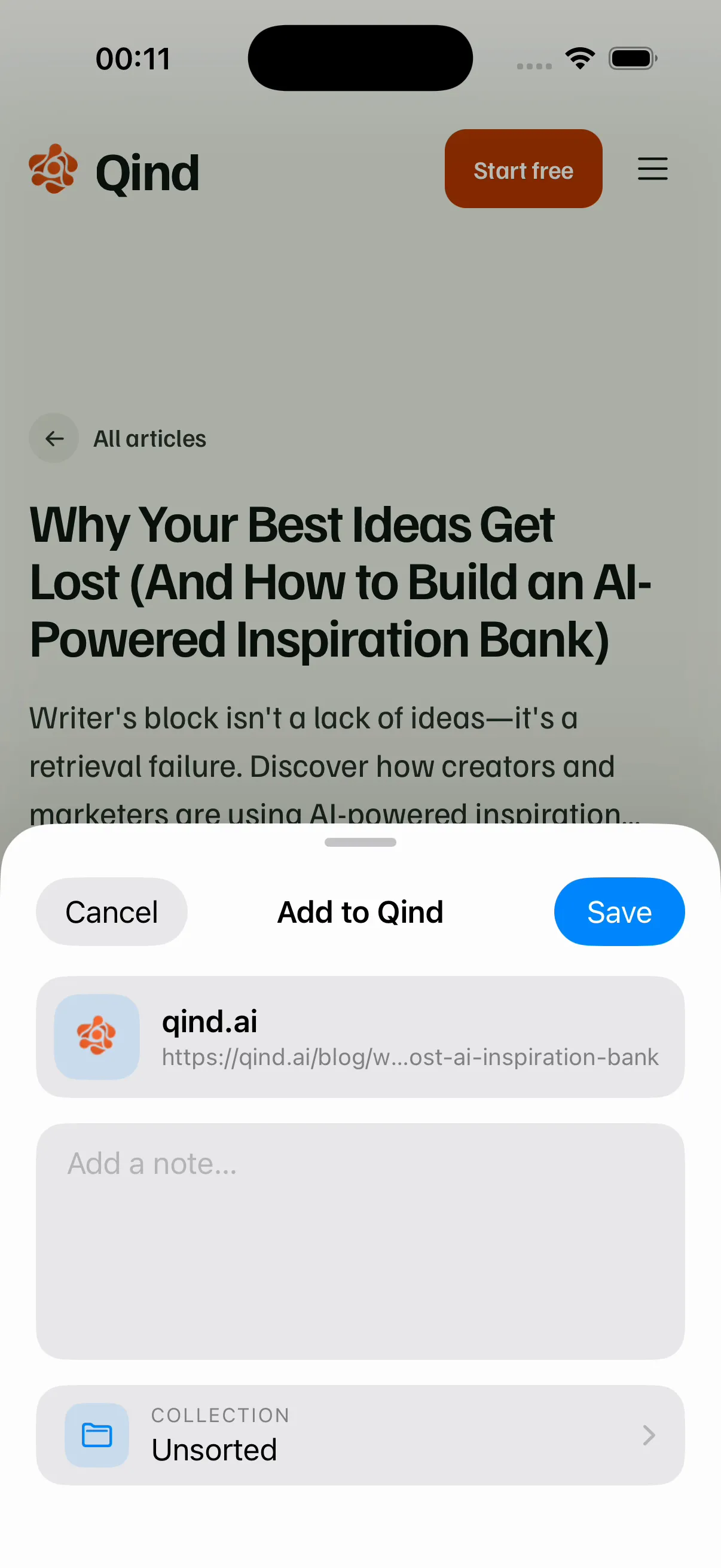
Three ways in, from the apps you already use on your phone.
01
In Safari, or any app with a Share button, tap Share and pick Qind. Choose a collection if you like, then save. On Android, Qind is in the share menu too.
02
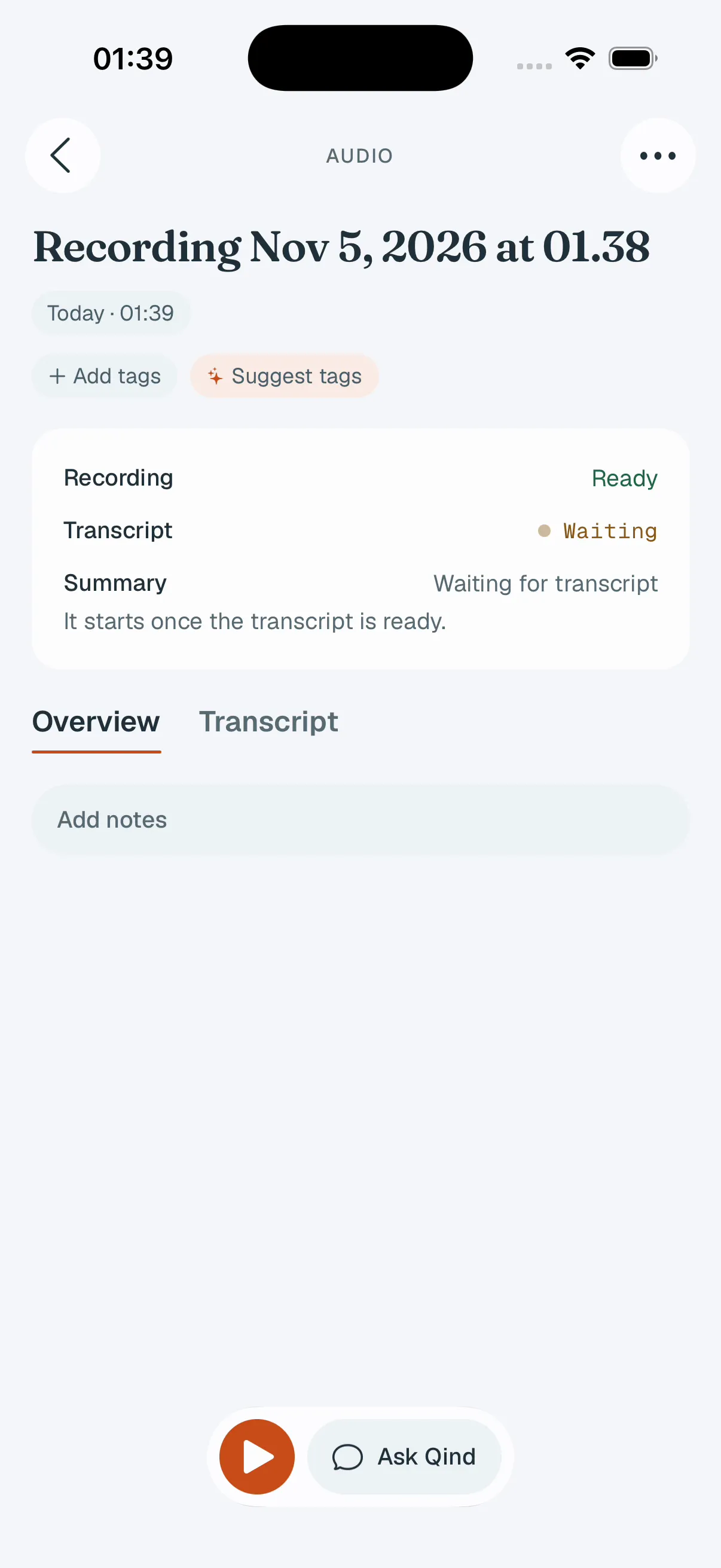
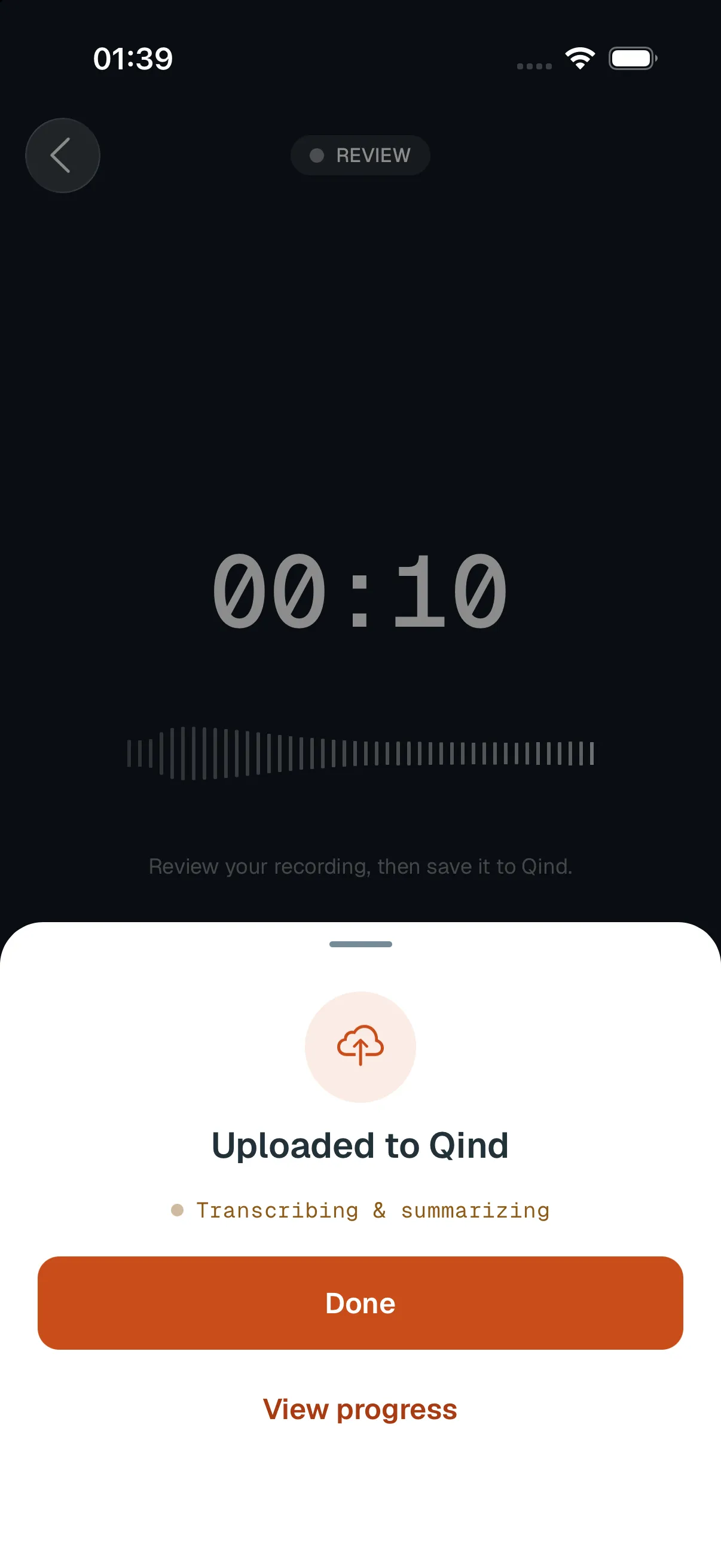
Tap Record on the Qind widget to open the recorder, say what is on your mind, and save it. The recording joins everything else you keep.
Recorded on iPhone: the Quick Capture widget, the recorder, Uploaded to Qind, then the saved recording.
Silent recording, about ten seconds. The iPhone Home Screen shows the Qind Quick Capture widget. Record is tapped and the recorder opens. A waveform moves while someone speaks, the recording is saved, and the sheet says Uploaded to Qind. Done is tapped.
03
Photograph a page, a whiteboard or a receipt, or scan a document straight from the app. It is saved with the rest of your library.
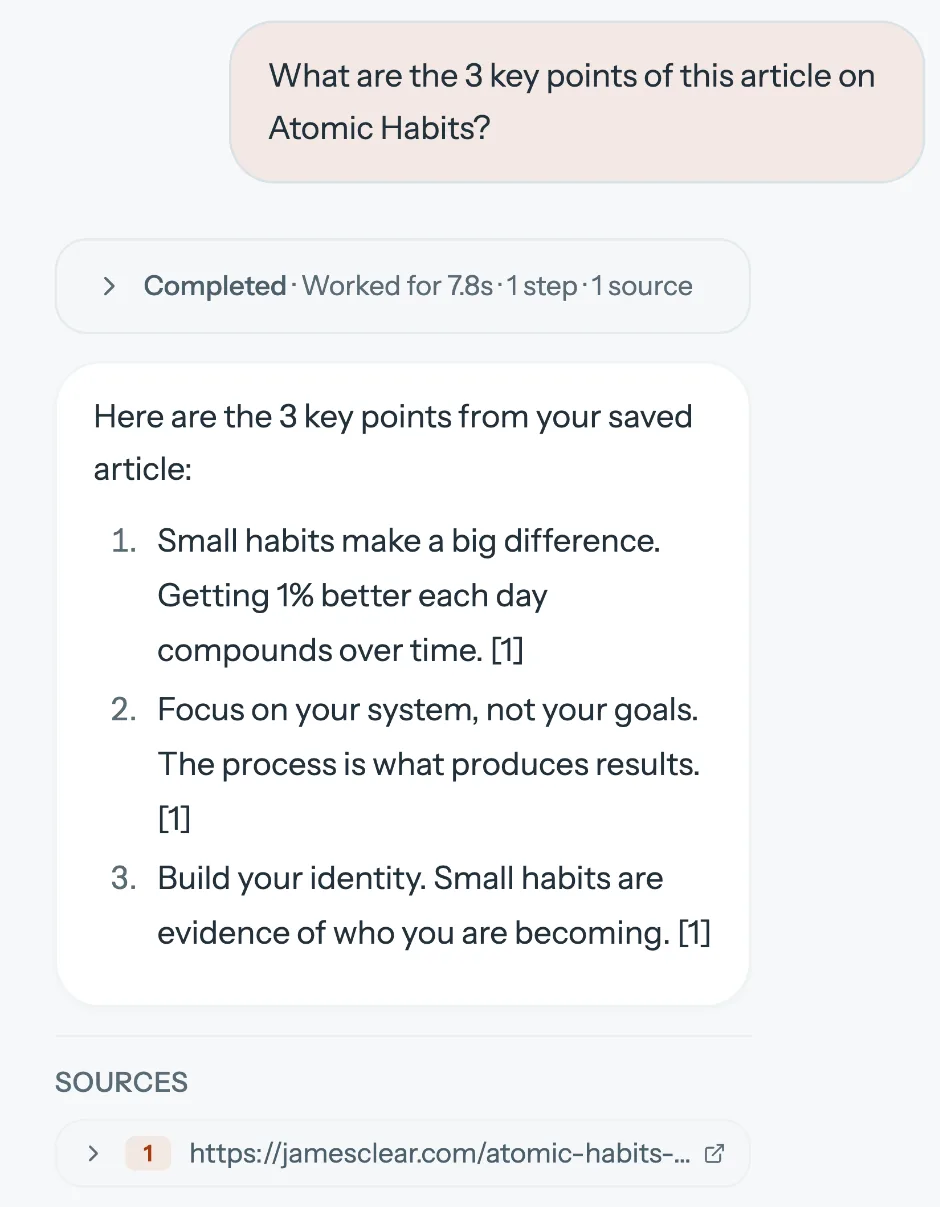
Ask Qind about what you’ve saved, in your own words.
The answer comes from your own items, with links back to the source so you can open it.
Qind tags what you save and files it into a collection when it is sure. When it is not, the item waits for you to review instead of landing somewhere wrong.
Once a week or once a month, a digest sums up what you saved.
Automatic tagging, filing and digests are part of Basic and Pro.
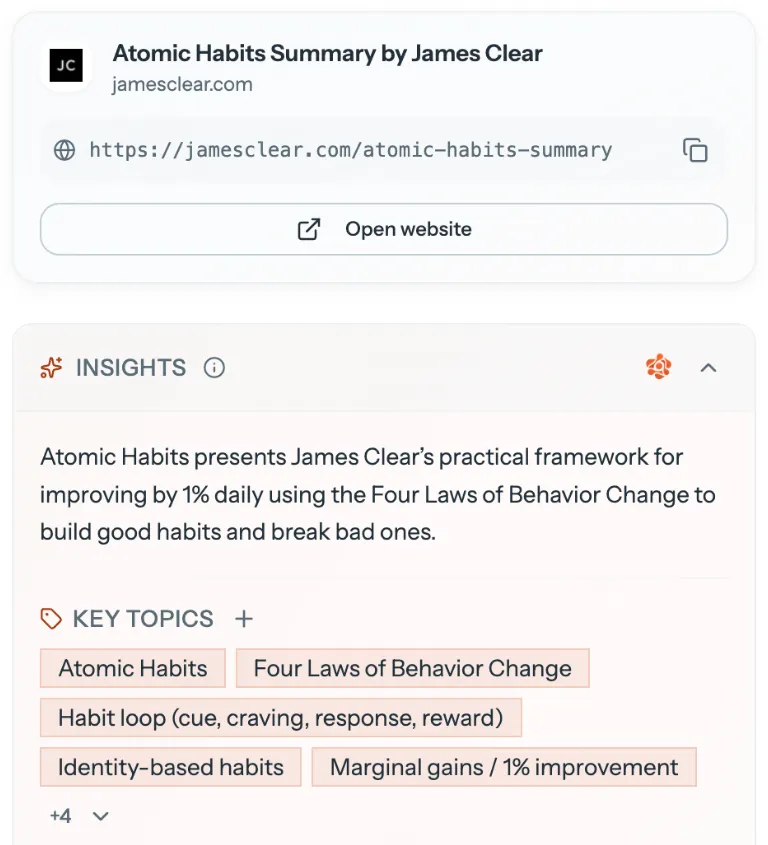
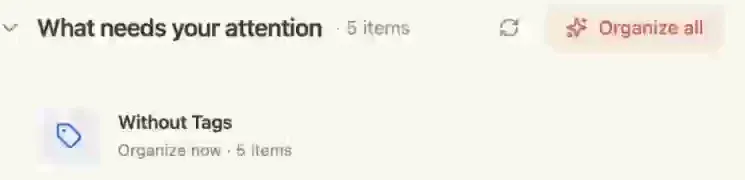
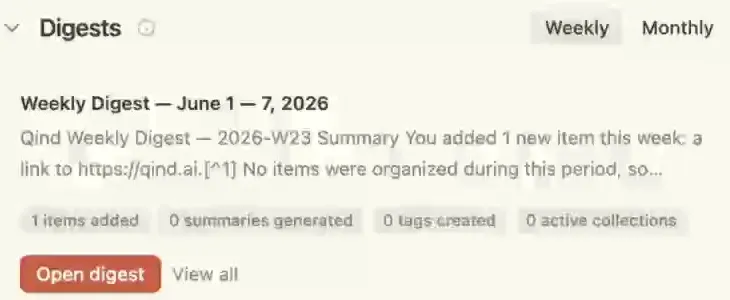
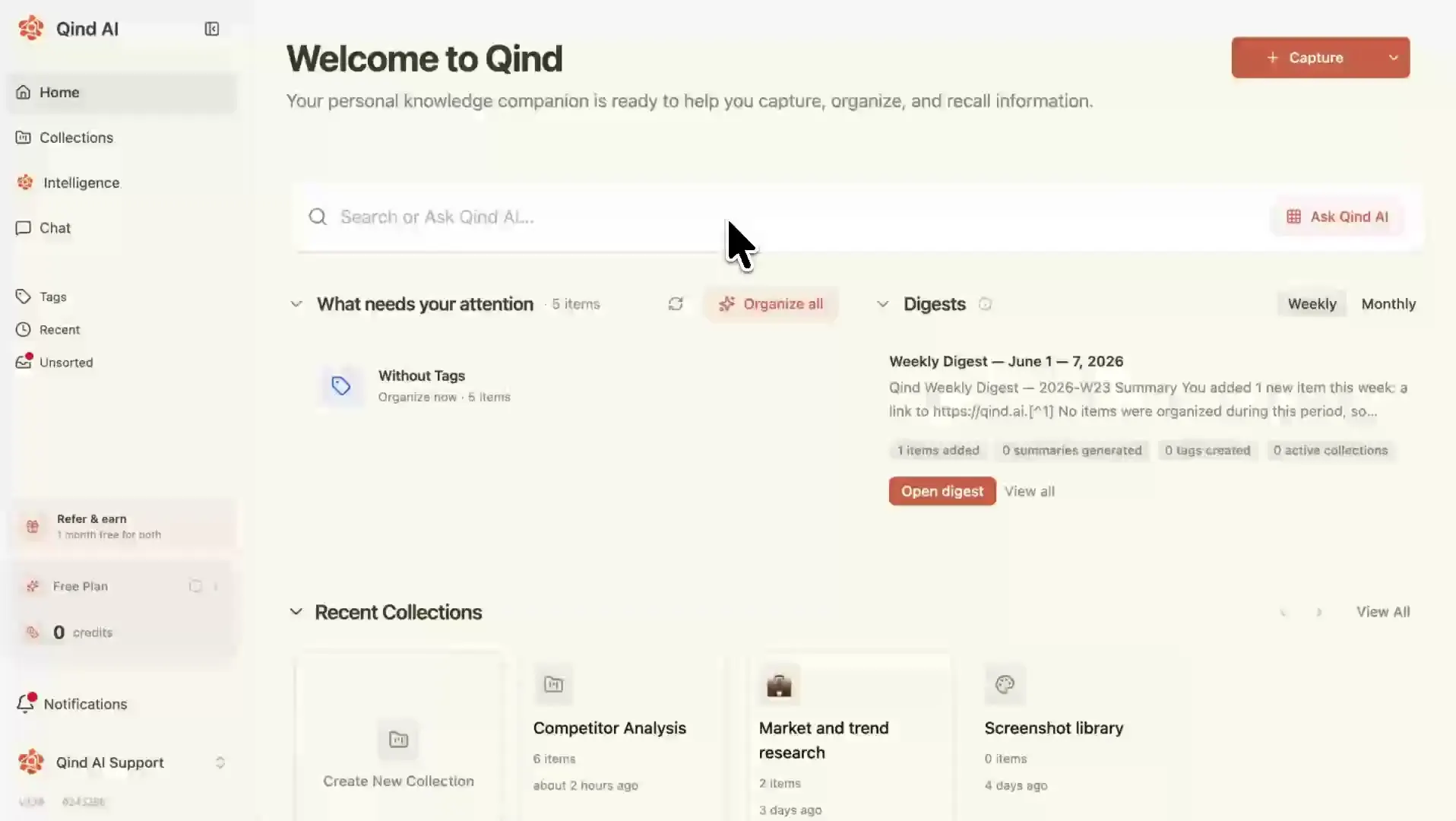
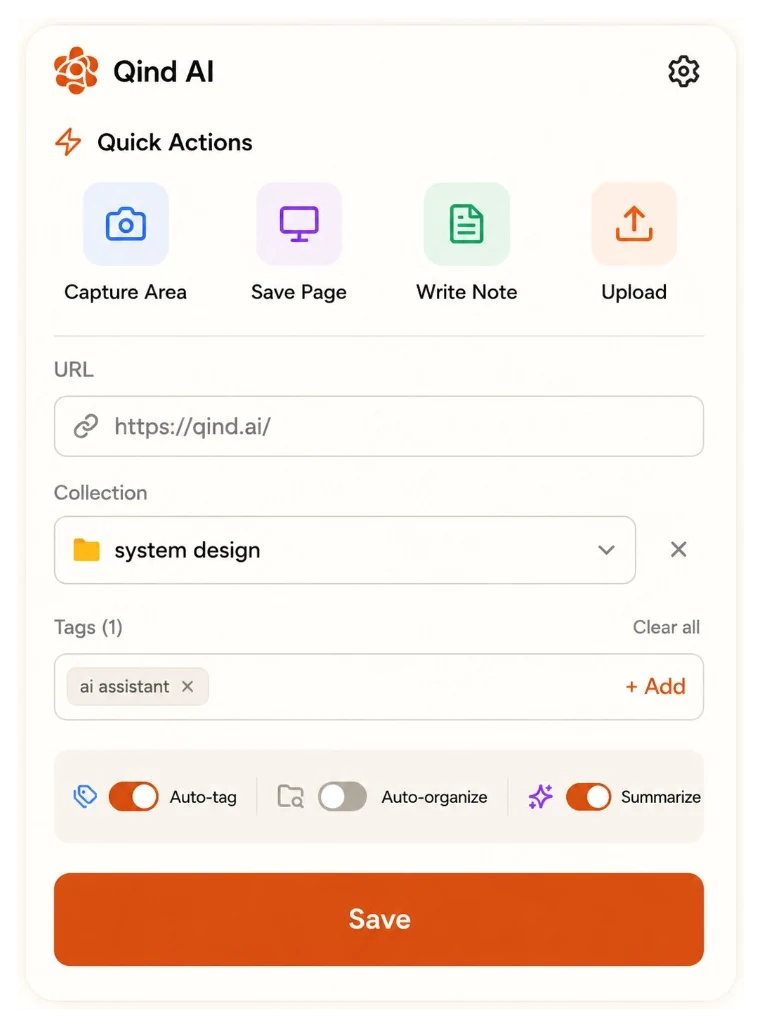
Keep Qind on your phone, open the web app at qind.ai on a computer, and clip pages with the web clipper in Chrome, Edge or Firefox. One account, one library.
Mobile app
Coming soon to iPhone and Android.
Web app
At qind.ai, in your browser.
Web clipper
Chrome, Edge and FirefoxEncrypted in transit; Qind does not train models on your content.
Content is processed on our servers, so Qind is not end-to-end encrypted.
How Qind handles securityQind offers Free, Basic, and Pro plans.
Automatic tagging, filing and digests are part of Basic and Pro.
Compare plansQind has a Free plan, and you can start on it today at qind.ai; the app will use the same account. Qind offers Free, Basic, and Pro plans. Basic and Pro add more room, automatic tagging and filing, and digests. The pricing page has the details.
Articles, notes, PDFs, images and audio. With the app you can share a page from Safari or another app, record a voice note, or take a photo or scan a page. On a computer you can also upload PDFs, Office documents, Markdown, images, audio and video.
No. Once the app is out you can create an account and use Qind from the phone alone. The web app at qind.ai and the web clipper are there when you are at a computer, and they show the same library.
Encrypted in transit; Qind does not train models on your content. Content is processed on our servers, so Qind is not end-to-end encrypted. The security page explains how your library is handled.
Qind is coming to iPhone and Android. It will need iOS 16.4 or later on iPhone and Android 7.0 or later, and it is not in the App Store or on Google Play yet.
Not yet. Direct imports from Notion, Evernote, Obsidian, Google Drive and Raindrop are planned, not available. Until then, share or upload what you want to keep.
A little less to keep in your head.